


Accounts & Profiles
Manage your account details, edit your profile, and update your information.
Catalog
- How do I change my DogPack username?
- How can I change my dog/business profile information?
- How do I change my profile picture?
- How do I add multiple dog profiles to my DogPack account?
- How to add social media links to your profile
- How to delete a dog profile from your account without deleting the entire account
- How to Delete Your DogPack Account Permanently
How do I change my DogPack username?
Changing your username on DogPack is simple and can be done through the Account & Info section.
Start by going to your profile section, opening the menu tab and going into “Account & info”.

Click on your current username to edit it and make the desired changes.
Don't forget to click updates at the button when you are done!
How can I change my dog/business profile information?
To update your dog profile or business profile information, follow these steps:
1. Go to the Profile tab at the bottom of the screen.
2. Click on the “Edit” button.
3. On the Edit screen, make the desired changes to your dog or business details.
4.Click “Save” when you’re done, and the updated information will be saved to your dog/business profile.
How do I change my profile picture?
Changing your profile picture is done through the Profile section.
1. Start by clicking on the "Profile" tab at the bottom of the screen.
2. Click on the “Edit” button.
3. On the Edit screen, click on the circle at the top of the page to select a new photo.
4.Once you’ve chosen your new photo, click “Save”. Your profile picture will update immediately.
You can edit any other details for your dog profile in this area as well.
How do I add multiple dog profiles to my DogPack account?
Adding multiple dog profiles on DogPack is quick and straightforward, giving each of your dogs their own profile. You can create a new profile for each dog and manage them all seamlessly from your account. Here's how:
There are two ways to add a new dog profile:
1. Using the Profile Button:
Hold down on the profile button, and a menu will appear.
2. From Your Profile Area:
Navigate to your profile section. At the top left, where your username and current profile name are displayed, click the arrow to open a menu.
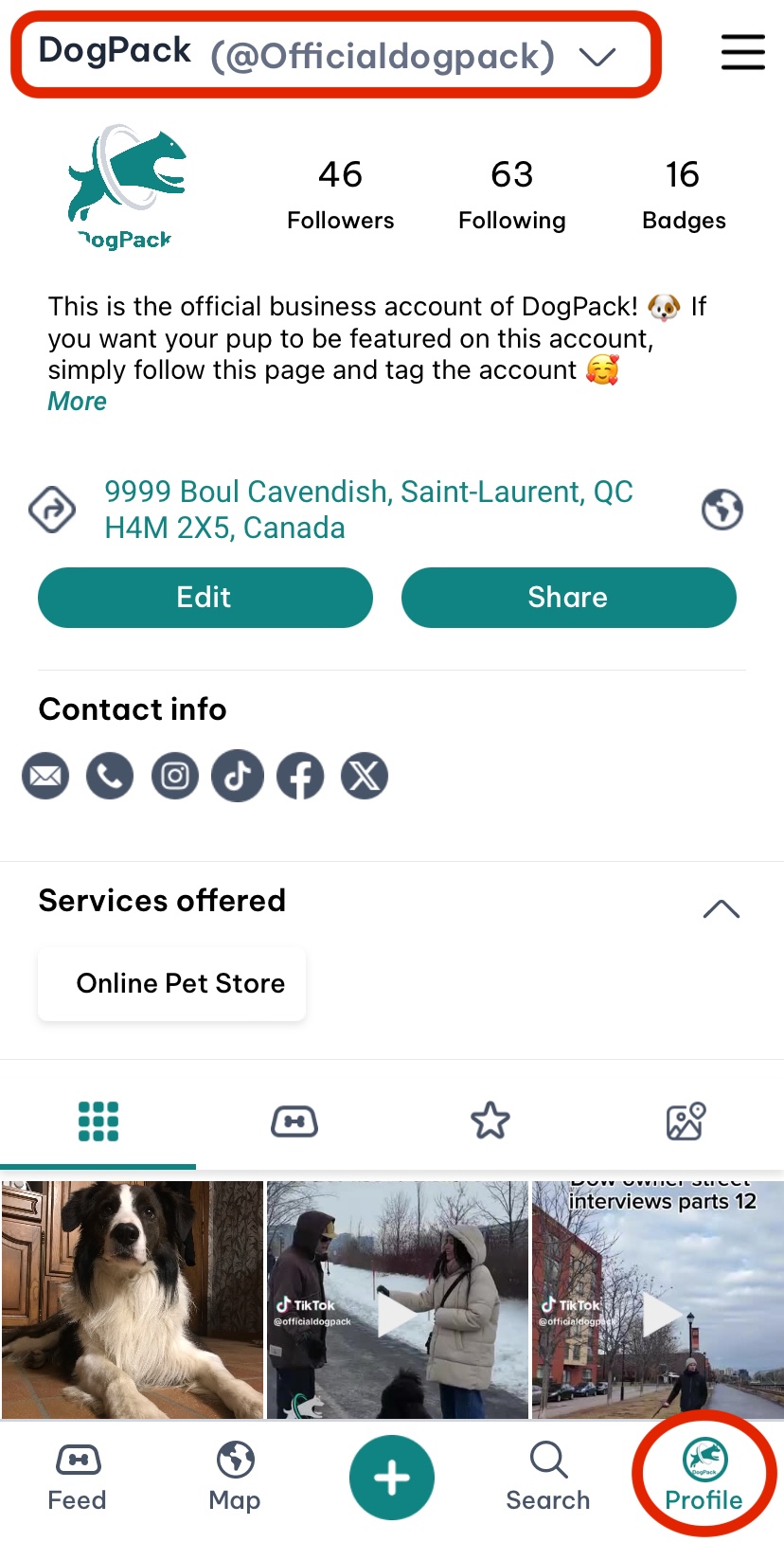
Once the menu is open, the steps are the same for both methods:
Select the option to “Add Dog Profile.”
Fill in the details for your new dog profile and save.
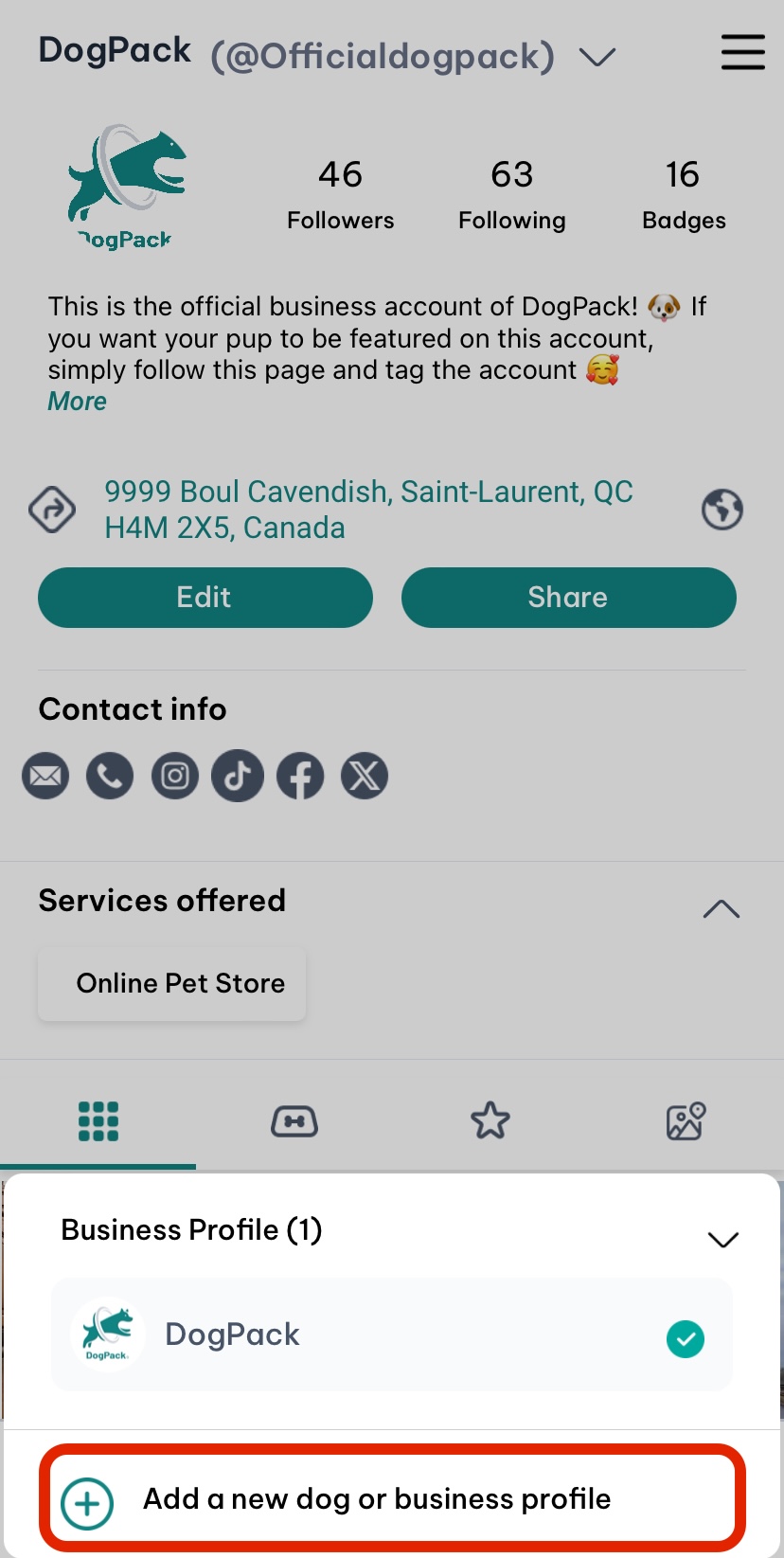
Switching Between Profiles:
To switch between profiles, click on your username at the top left of your profile section. A menu will appear, allowing you to select the dog profile you want to view. Managing multiple profiles has never been easier!
How to add social media links to your profile
A great way to increase exposure for your social media pages is by adding in the links to each page in your ‘Account & Info’ section on DogPack.
That way when someone clicks on your username they’ll be taken to your Account & Info page and be able to see all the links you’ve added.
Step 1:
Navigate to your profile and click the 3 lined ‘Hamburger’ icon in the top right corner.

Step 2:
Click ‘Account & Info’ right at the top of the list

Step 3:
Click the ‘Add Social Links’ button

Step 4:
Add in all the links you need and click ‘Add’

To see another users Account & Info section and see if they’ve added any social links, simply navigate to their dogs’ profile page and click the username which starts with @.

This is a great way to help other DogPack users find you outside of the app and grow your presence on many social apps while using DogPack.
How to delete a dog profile from your account without deleting the entire account
If you have multiple dog profiles on your DogPack account, you can remove a specific profile while keeping your account and other profiles active. Follow these steps:
1) Open DogPack and go to your Profile
2) Tap Account and info
3) Tap More settings
4) Select Manage profiles
5) Tap the edit icon next to the profile you want to delete
6) Tap More settings
7) Select Delete Profile
Please note that profile deletion is permanent. Your account and other dog profiles will remain unaffected.

How to Delete Your DogPack Account Permanently
You can permanently delete your DogPack account directly in the app by following these steps:
1) Open DogPack and go to your Profile
2) Tap the top right icon
3) Click search bar on Settings and activity page
4) Search for “Deactivation or deletion”
5) Tap More Settings
6) Select Delete User Account
Please note that account deletion is permanent and all associated data will be removed.
